Background information and filing requirement deadlines can be found here: Ethics and Sunshine Trainings – San Francisco Ethics Commission.
Step 1
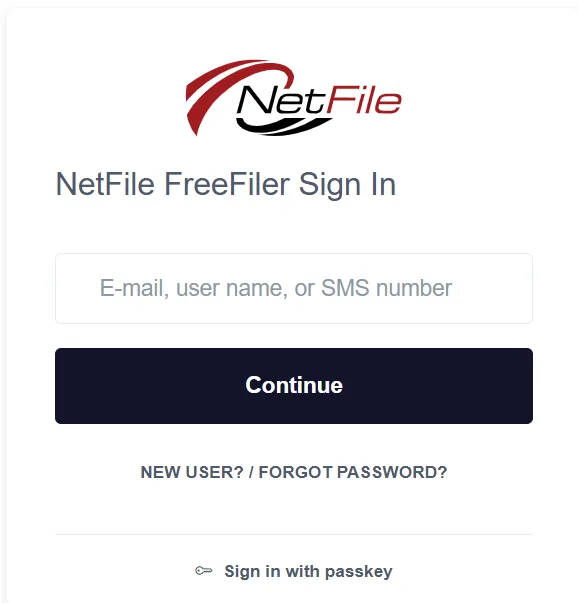
Log into your NetFile User account by visiting the NetFile filer login webpage and clicking on the Log Into Your Account button. Enter your NetFile User E-mail Address.
Step 2
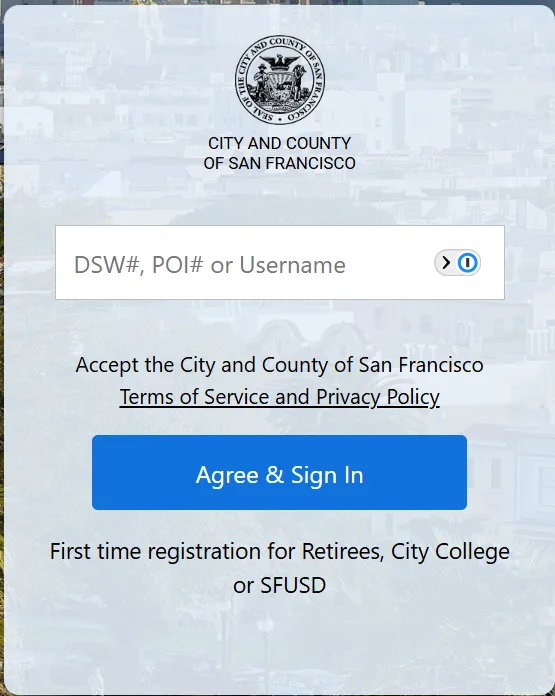
Enter your City DSW Number and click the Agree & Sign-In button.
Note: If your NetFile email address is not a City‑issued email address, please navigate to this page for instructions on how to log into your NetFile account using a non‑City‑issued email address (Form 700 Filers – San Francisco Ethics Commission).
Note: If you already have your browser session authenticated with the City’s multifactor authentication (MFA), you will be taken directly to Step 5 below.
Step 3
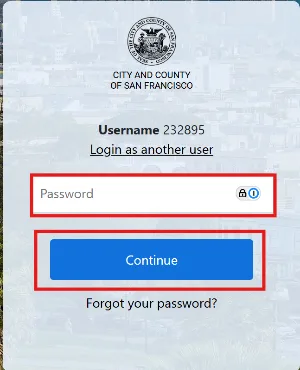
Enter your City Password and click the Continue button.
Step 4
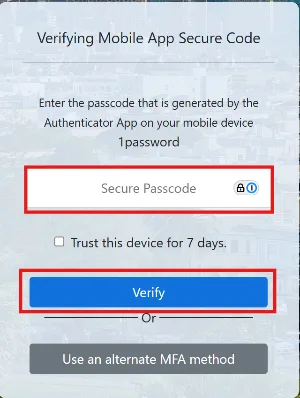
Enter your MFA Verification Code and click the Verify button.
Step 5
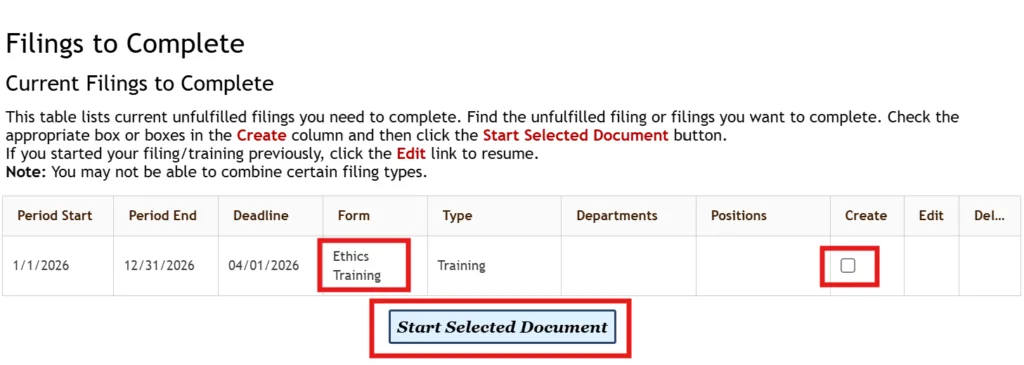
In the Create column, select the checkbox in the Ethics Training row, then click the Start Selected Document button.
Step 6
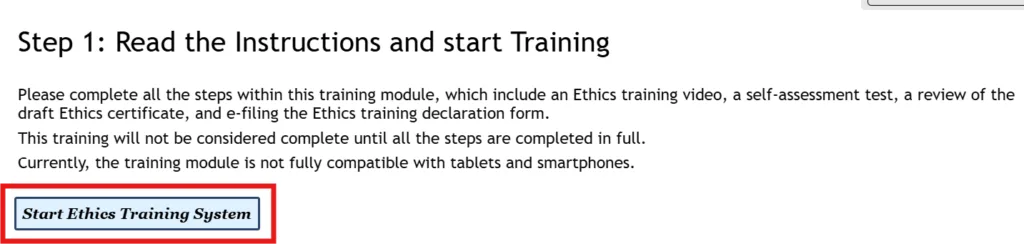
Read the Instructions on this page and click the Start Ethics Training System button.
Step 7
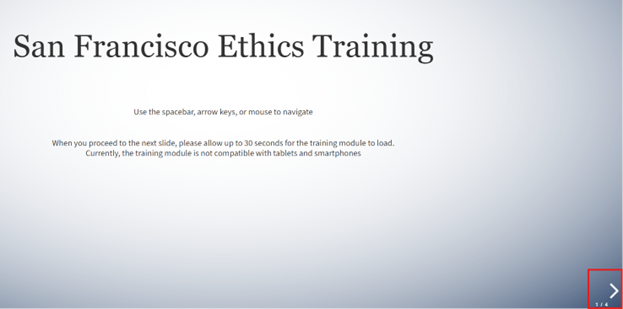
Read the instructions on this page and click the Right Arrow Key in the bottom right corner of the page to continue.
Step 8
There are 7 separate videos that make up the Annual Ethics Training module. Press the Play button in the middle of the page to start each video of the Annual Ethics Training module. Be sure to follow the instructions and prompts within each video. Please keep in mind that the entire module will take about 1 hour and 10 minutes to complete. If you exit the module, your place will be saved upon returning.
Step 9
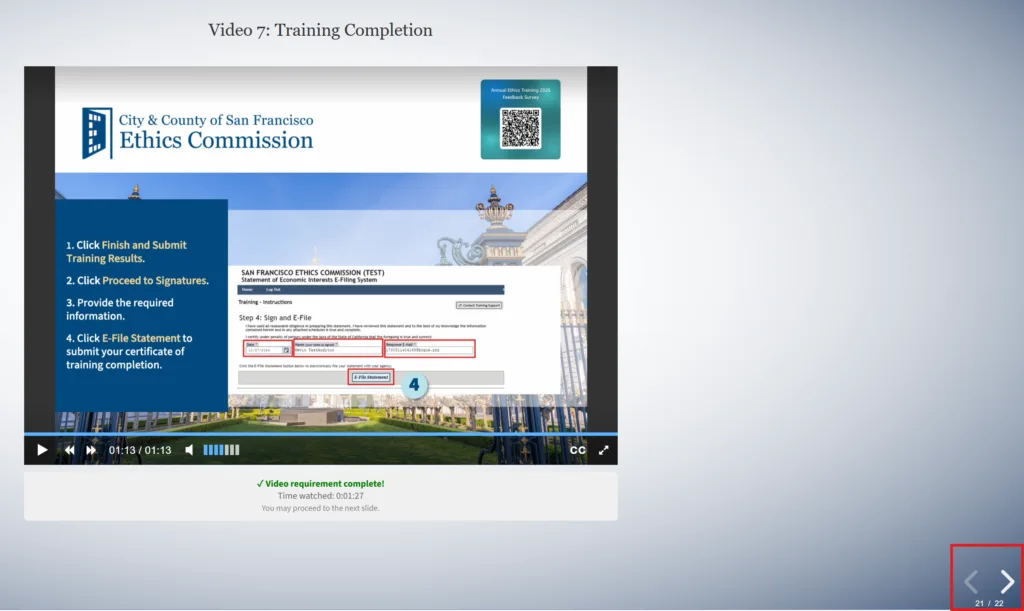
Upon completion of all of the videos within the Annual Ethics Training module, click the Right Arrow Key in the bottom right corner of the page to continue.
Step 10
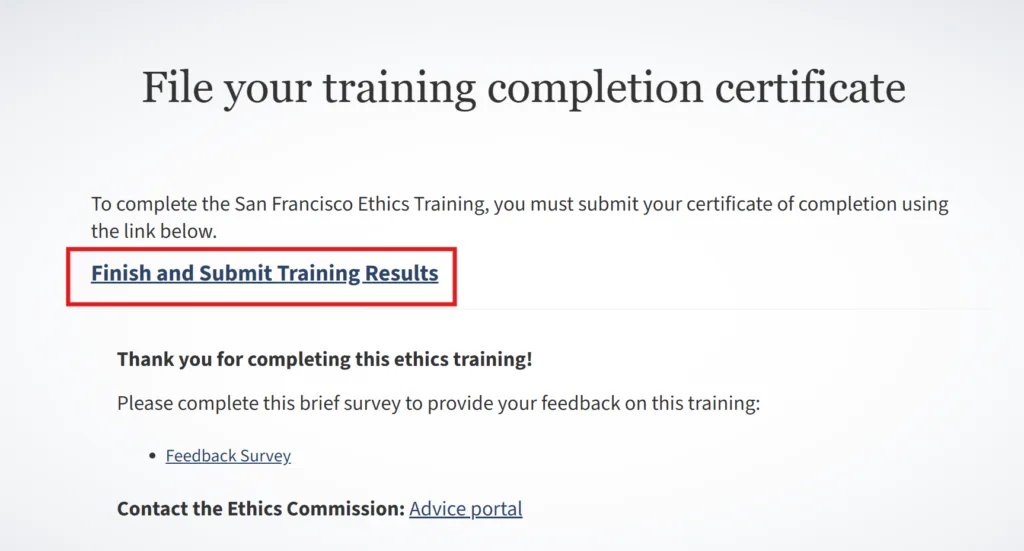
The training portion of this module is completed, however the certificate of completion still needs to be signed and submitted. Click on the Finish and Submit Training Results link.
Step 11
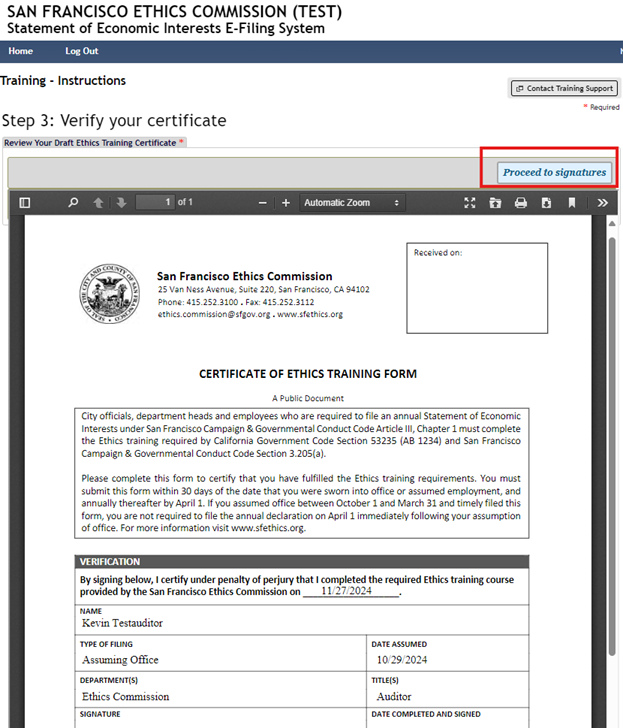
Once the certificate is read and verified as accurate, click the Proceed to signatures button.
Step 12
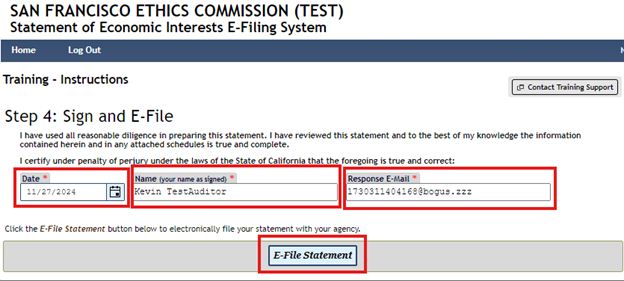
Enter the date, your name, and your email address into the corresponding text boxes, then click the E-File Statement button.
Step 13
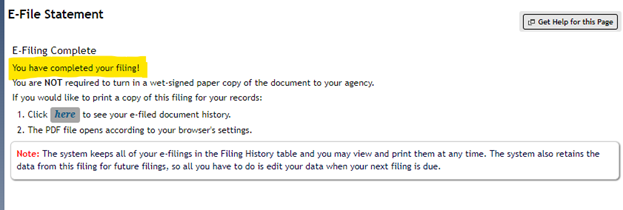
E-Filing is completed. Please feel free to print a copy of the certificate for your records.