Background
City officers who are required to file annual Statement of Economic Interests (Form 700) with the Ethics Commission under San Francisco Campaign & Governmental Conduct Code (C&GCC) Code Section 3.1-103(a)(1) and (b)(1) must complete the Sunshine Ordinance training (San Francisco Administrative Code Section 7.33).
City officers must complete the Sunshine Ordinance training online through the Commission’s e-filing system (NetFile). After completing both trainings in NetFile, they will be prompted to file an Ethics Training Declaration Form and a Sunshine Ordinance Declaration Form electronically in the system.
When to File
Within 30 days of assuming office or employment
City Officers must complete the Sunshine Ordinance training and electronically file the Sunshine Ordinance Declaration Form within 30 days of assuming office.
Annually by April 1
City officers must complete the Sunshine Ordinance training, and electronically file the Sunshine Ordinance Declaration Form annually by April 1.
If a deadline falls on a weekend or on a state holiday, the deadline is the next regular business day.
Filers who assume office between October 1 and March 31 and timely complete the assuming office training requirements are not required to file the Sunshine Ordinance Declaration Forms on the April 1 immediately following assumption of office or employment.
Step 1
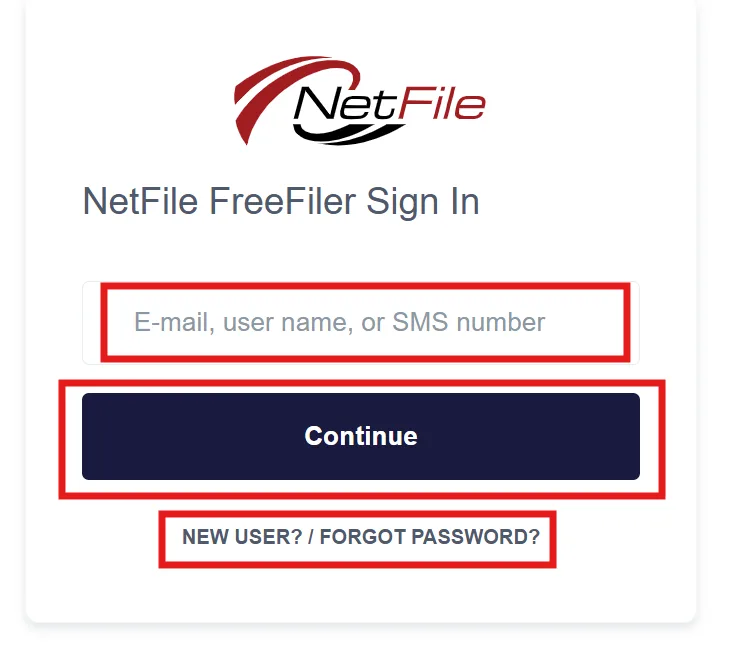
Log into your NetFile User account by visiting the NetFile filer login webpage and clicking on the Log Into Your Account button. Enter your NetFile User E-mail Address and Password. If you do not know your password, please click on the New User? / Forgot Password? link on the NetFile filer login webpage.
Step 2
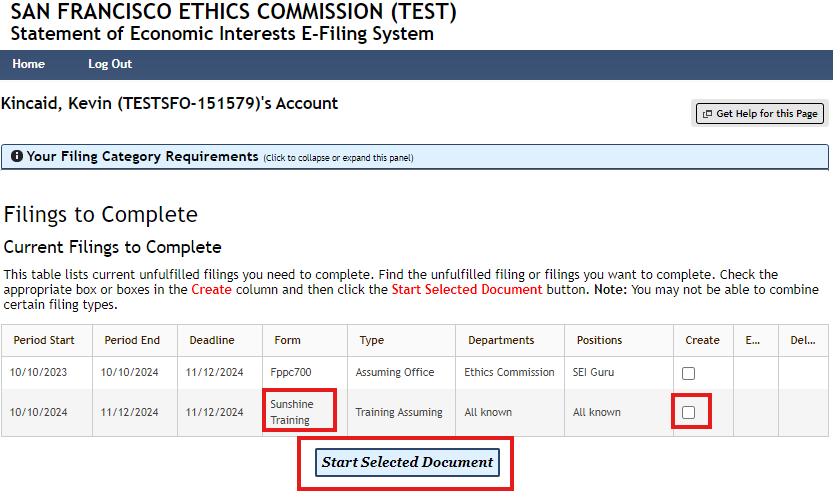
From the NetFile filer account Home page, check/click the box under the Create column for the Sunshine Training form. Then click the Start Selected Document button.
Step 3
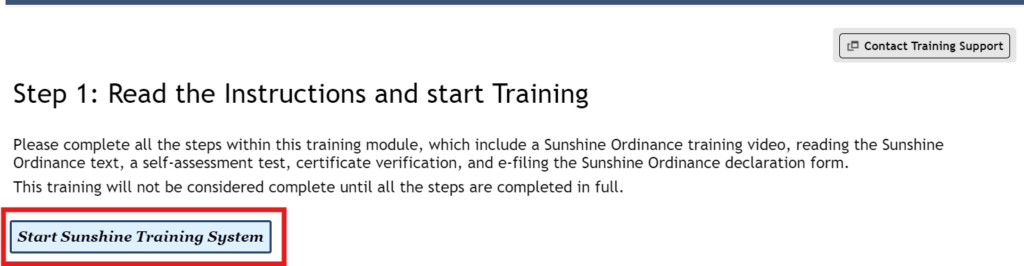
Read the Instructions on this page and click the Start Sunshine Training System button.
Step 4
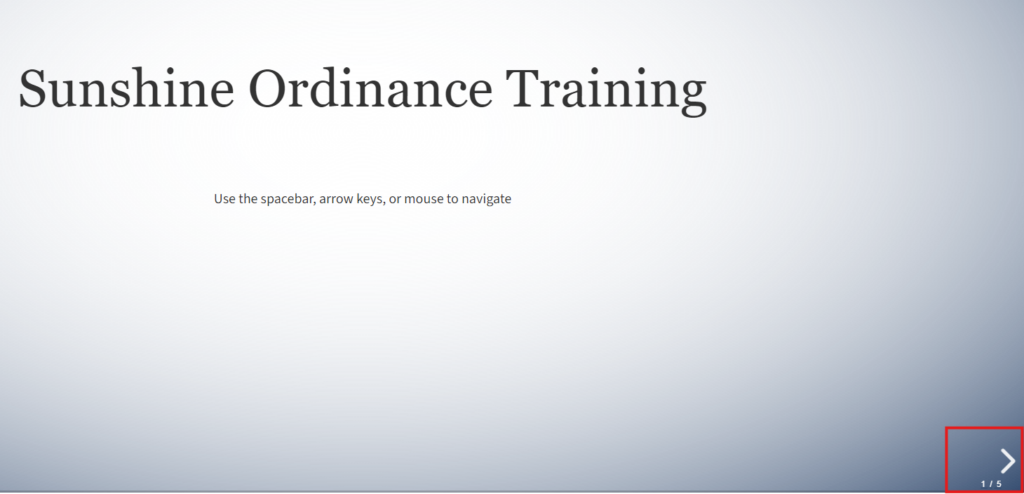
Read the instructions on this page and click the Right Arrow Key in the bottom right corner of the page to continue.
Step 5
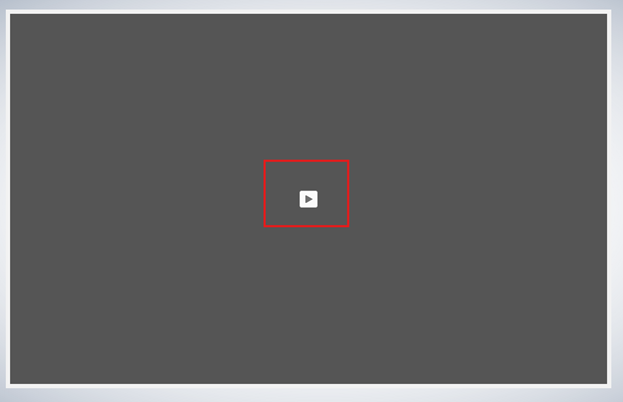
Press the Play button in the middle of the page to start the Sunshine Training Video. Be sure to follow the instructions and prompts within the video. Please keep in mind that the entire video will take about 1 hour to complete. If you exit the video, your place will be saved upon returning.
Step 6
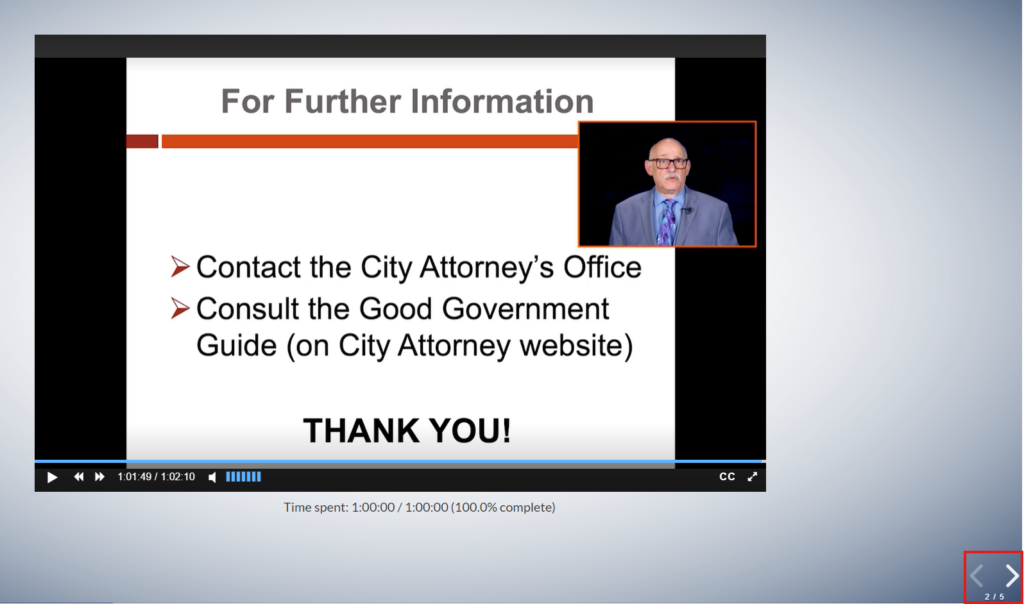
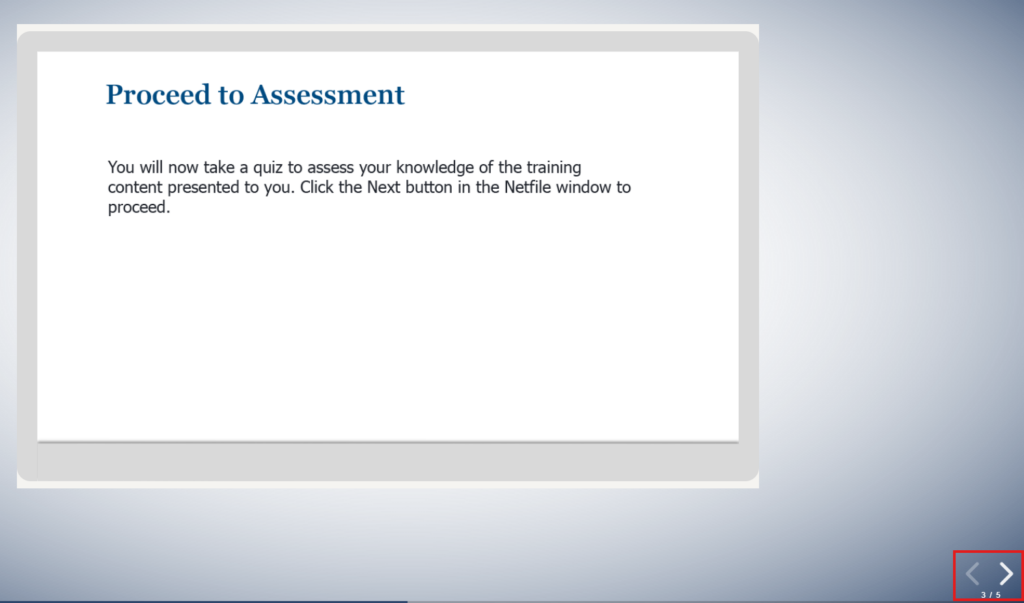
Upon completion of the Sunshine Training video, click the Right Arrow Key in the bottom right corner of the page to continue.
Step 7
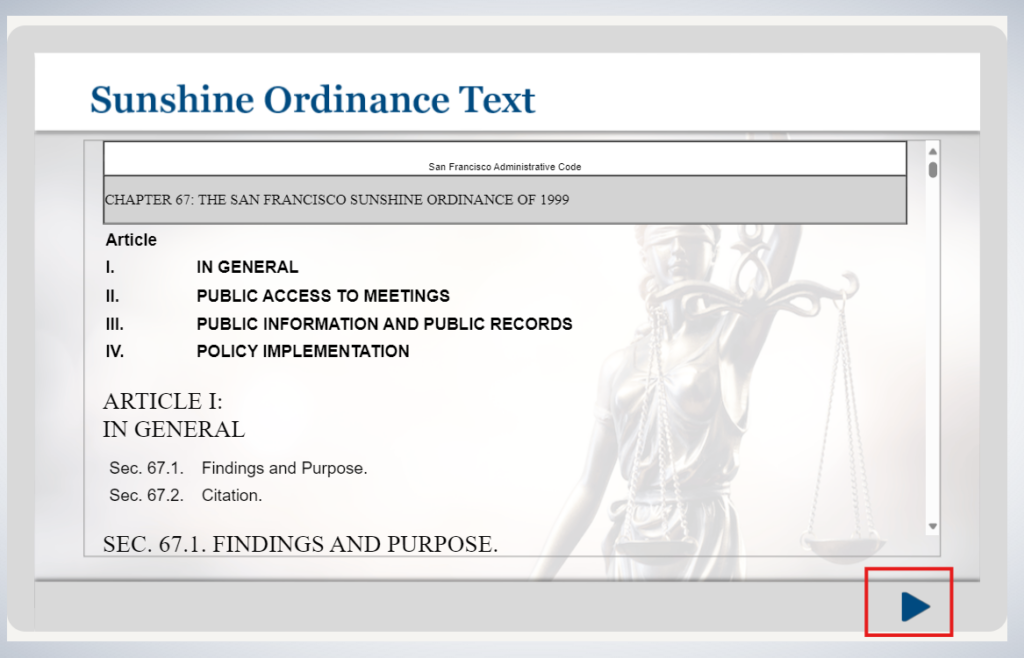
Read the Sunshine Ordinance Text and click the Right Arrow Key in the bottom right corner of the page to continue.
Step 8
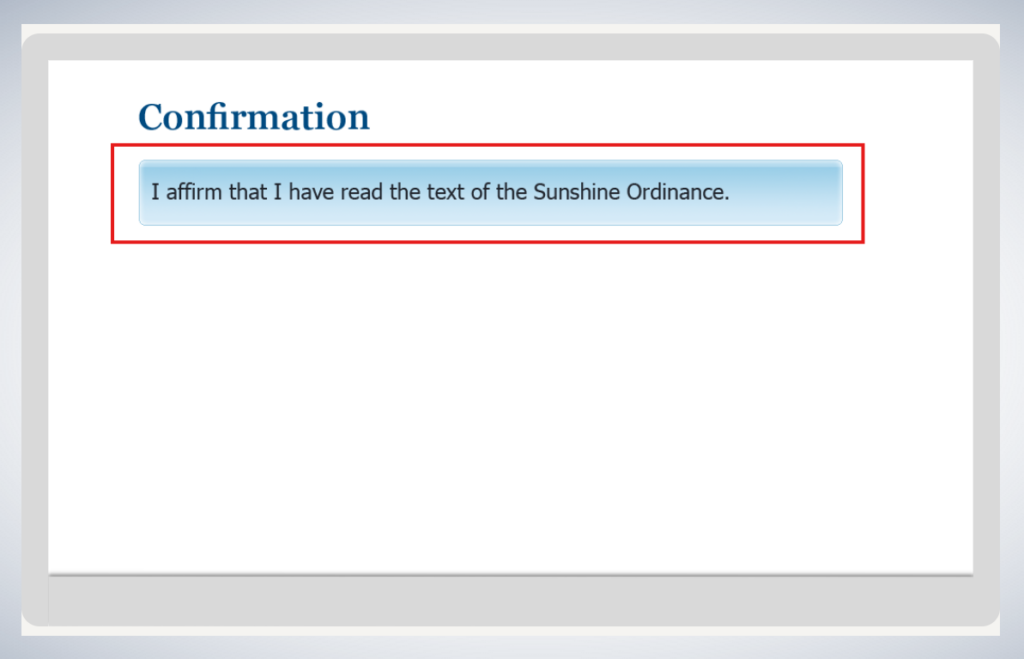
Click the I affirm that I have read the text of the Sunshine Ordinance button to continue.
Step 9
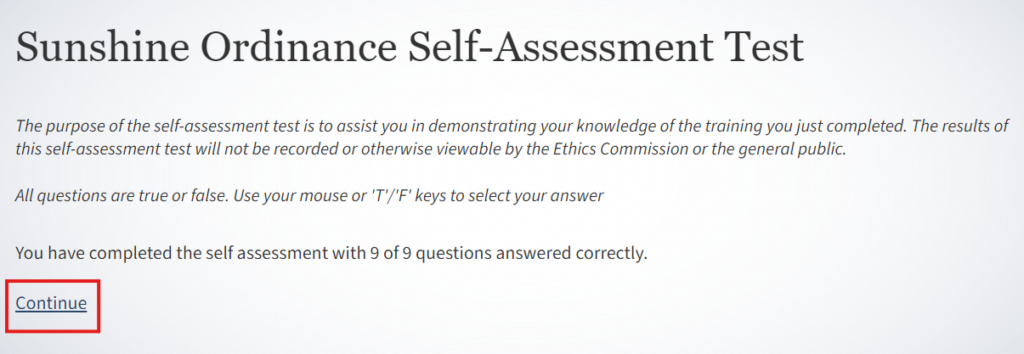
Read the instructions for the Self-Assessment Test and choose an answer for each question within the test.
Step 10
Upon completion of the Self-Assessment Test, click the Continue link.
Step 11
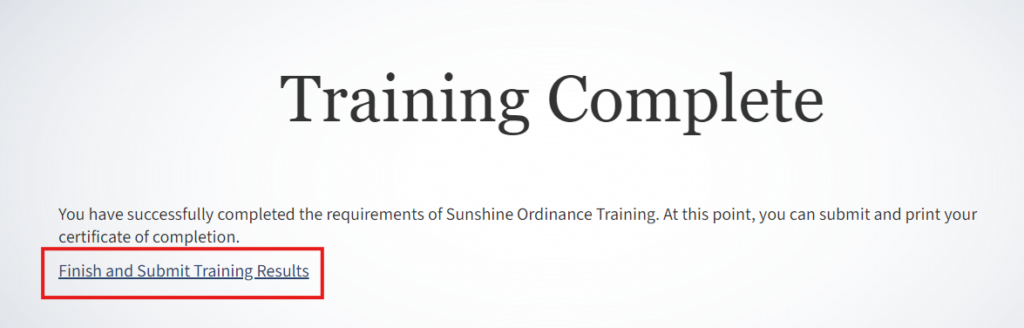
The training portion of this module is completed, however the certificate of completion still needs to be signed and submitted. Click on the Finish and Submit Training Results link.
Step 12
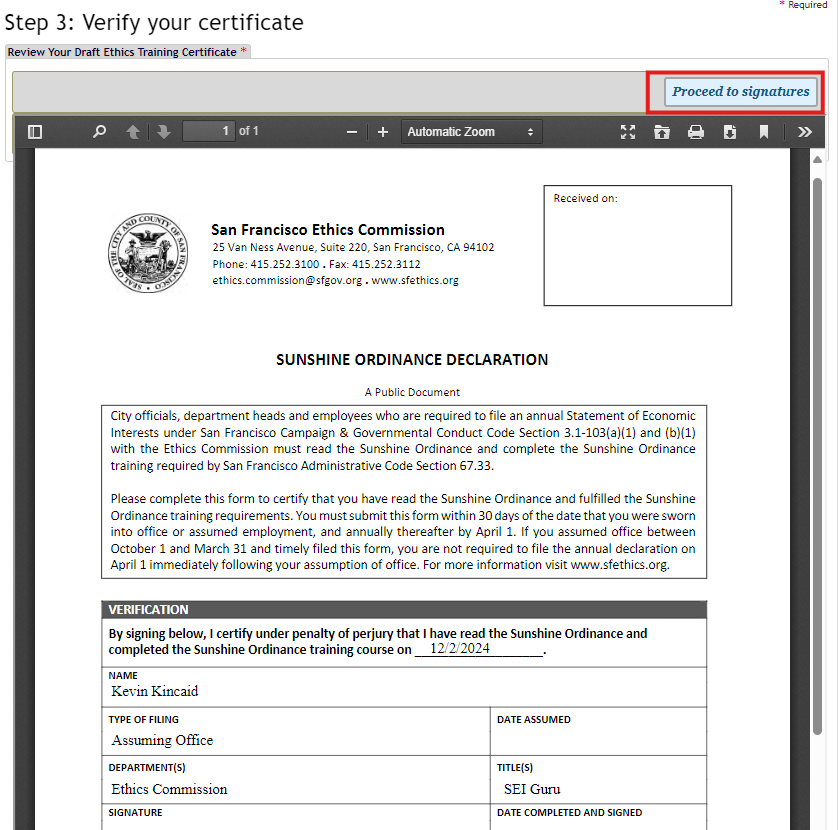
Once the certificate is read and verified as accurate, click the Proceed to signatures button.
Step 13
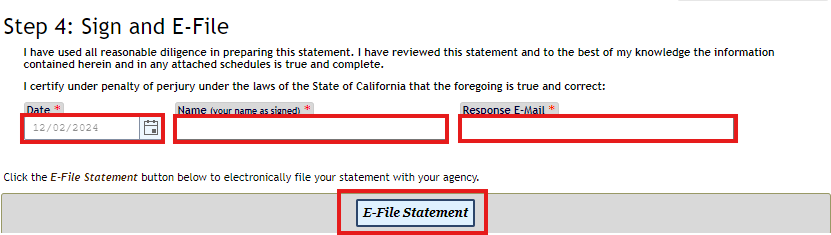
Enter the date, your name, and your email address into the corresponding text boxes, then click the E-File Statement button.
Step 14
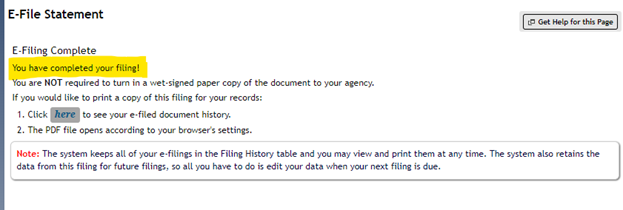
E-Filing is completed. Please feel free to print a copy of the certificate for your records.